How to Secure Your Online Banking Account: A Practical Guide
Online banking has made managing money faster and more convenient than ever. But that convenience comes with real responsibility. Account takeovers, phishing scams, and unauthorized transactions are genuine threats — and they target everyday users, not just corporations. The good news: most successful attacks exploit preventable mistakes. Fixing those gaps is entirely within your control.
Why Online Banking Security Matters More Than Ever
Digital payment fraud has grown in step with the rise of online banking and e-wallets. As more financial activity moves to apps and browsers, attackers have shifted their focus accordingly. A single compromised account can result in drained funds, damaged credit, and weeks of recovery work.
The threat landscape has also become more sophisticated. Criminals no longer rely solely on brute-force hacking. They use social engineering, credential stuffing (testing leaked username-password pairs from other breaches), and SIM swapping to bypass security measures that once seemed adequate. Understanding what you're up against is the first step toward building real protection.
The reassuring reality is that most successful breaches rely on weak or reused passwords, absent two-factor authentication, or a user clicking a malicious link. Address those three areas and you eliminate the vast majority of your risk.
Create a Strong, Unique Password and Use a Password Manager
A strong banking password is one that's long, random, and used nowhere else. That last part matters most. Reusing passwords across services means a breach at any one of them — a retail site, a forum, a streaming platform — can expose your bank account.
What makes a banking password robust? Aim for at least 16 characters combining uppercase and lowercase letters, numbers, and symbols. Avoid anything tied to your identity: birthdays, names, or common phrases are the first things automated tools try. A passphrase built from four or five unrelated words (think: cobalt-river-lamp-Tuesday-91) is both strong and easier to remember than a string of random characters.
The practical problem is that most people manage dozens of accounts. A password manager solves this by generating and storing complex, unique passwords for every service. You only need to remember one master password. Most reputable password managers also flag when a saved password appears in a known data breach, giving you an early warning to change credentials before damage is done.
Never store your banking password in a browser's built-in save feature on a shared or public device. And if your bank offers a security question as a recovery option, treat the answer like a second password — use something false and memorable rather than your actual mother's maiden name.
Enable Two-Factor Authentication (2FA) and Biometric Login
Two-factor authentication adds a second verification step after your password, so a stolen credential alone isn't enough to access your account. Most banks and e-wallets now offer 2FA, and enabling it takes less than five minutes.
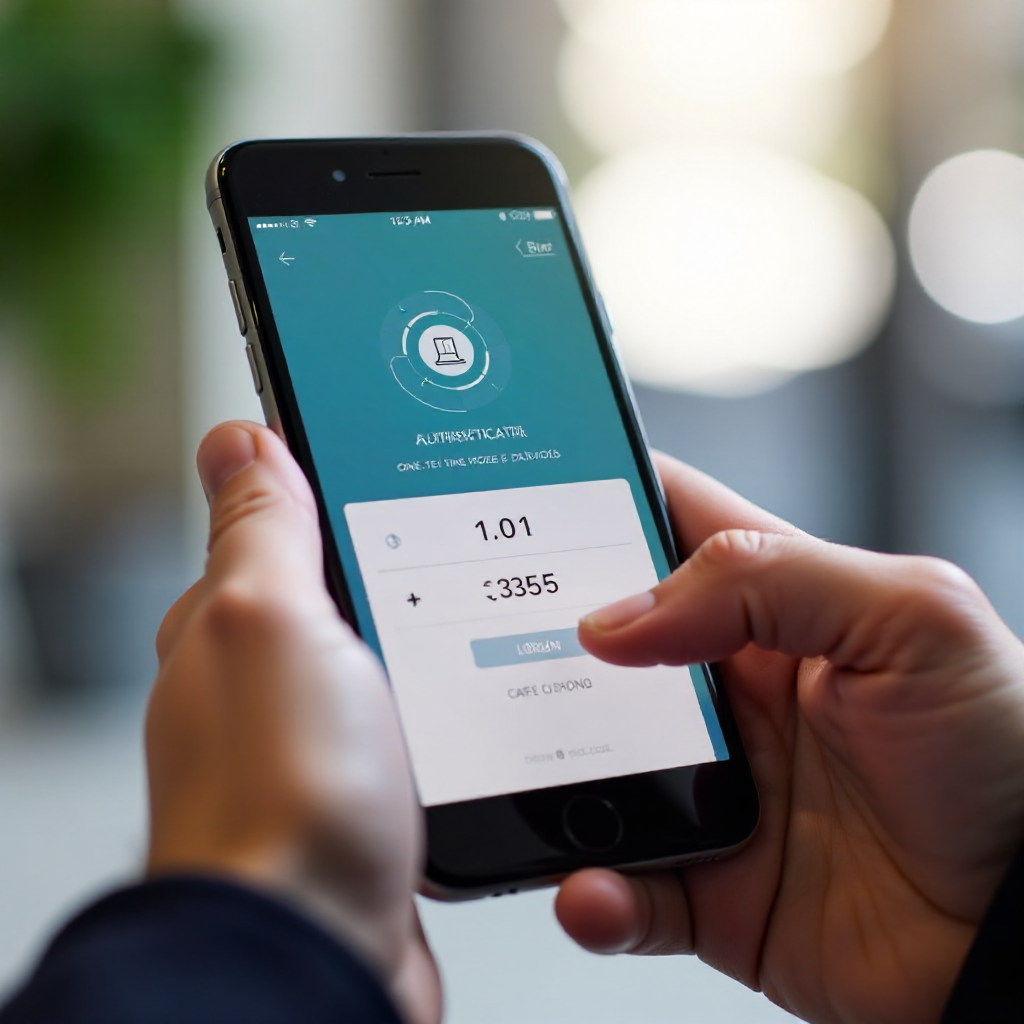
There are two main forms you'll encounter. SMS-based 2FA sends a one-time code to your phone number. It's better than nothing, but it has a known vulnerability: SIM swapping (covered in the next section) can redirect those codes to an attacker's device. Authenticator apps — which generate time-sensitive codes locally on your device — are more secure because they don't rely on your phone number at all. Check your bank's security settings; many now support authenticator apps as an alternative to SMS.
Biometric authentication — fingerprint scanning and Face ID — is another layer worth enabling in your banking app. Biometrics are convenient and harder to replicate remotely than a password. They don't replace 2FA, but they make unauthorized access on a physical device significantly more difficult. Most modern banking apps and e-wallets include biometric login in their settings under Security or Privacy.
To activate 2FA: log into your bank's app or website, navigate to Security Settings, and look for "Two-Step Verification" or "Two-Factor Authentication." Follow the prompts to link an authenticator app or confirm your phone number. Do this today — it's the single highest-impact step on this list.
Recognize and Avoid Phishing, SIM Swapping, and Social Engineering
The most common attack vectors targeting banking users don't exploit software vulnerabilities — they exploit human behavior. Phishing, SIM swapping, and social engineering are responsible for a large share of account compromises, and they work because they look legitimate.
Phishing attacks typically arrive as emails, SMS messages, or even phone calls impersonating your bank. The message creates urgency — "Your account has been suspended," "Unusual activity detected" — and directs you to a fake login page designed to capture your credentials. Red flags include sender addresses that don't match your bank's official domain, generic greetings like "Dear Customer," and URLs that are slightly misspelled (e.g., secure-bankofexample.com instead of bankofexample.com).
SIM swapping is more targeted. An attacker contacts your mobile carrier, impersonates you using personal information gathered from social media or previous breaches, and convinces the carrier to transfer your phone number to a SIM they control. Once they have your number, SMS-based 2FA codes route to them. Protect against this by setting a PIN or passcode on your mobile carrier account — most carriers support this as a free security feature.
Social engineering is the broader category: any manipulation designed to get you to reveal information or take an action you wouldn't otherwise take. Your bank will never call and ask for your full password, PIN, or one-time code. If someone does, hang up and call your bank's official number directly.
Manage Your Sessions and Device Access
Session management is a simple but often overlooked layer of banking security. Active sessions left open on unused devices are an easy entry point for anyone who gains physical or remote access to that device.
Most banking apps and online banking portals let you view all active sessions — the devices and locations currently logged into your account. Review this list periodically. If you see a session from a device you don't recognize or a location you haven't visited, revoke it immediately and change your password.
Auto-logout settings are your safety net for idle sessions. Many banks automatically log you out after a period of inactivity, but the timeout window varies. If your bank allows you to customize this, set it to the shortest interval that's still practical for how you use the app.
When you replace or sell an old phone, remove it from your bank's trusted device list before wiping the device. Trusted devices often bypass certain authentication steps, so an old phone in someone else's hands could represent an open door. This setting is usually found under Security or Linked Devices in your banking app.
Stay Safe on Networks and Devices
Public Wi-Fi networks are a genuine risk for online banking. Open networks in cafes, airports, and hotels can be monitored by other users on the same network, and some attackers set up fake hotspots with convincing names to intercept traffic.
The practical rule: avoid logging into your bank account on public Wi-Fi. If you have no alternative, use a VPN (Virtual Private Network), which encrypts your connection and prevents eavesdropping. Check that any banking website you visit uses HTTPS — look for the padlock icon in your browser's address bar, which indicates TLS encryption is active between your browser and the server.
Keeping your banking app and phone's operating system updated is equally important. Security patches address known vulnerabilities; running outdated software leaves those gaps open. Enable automatic updates for your banking app and OS so you're not relying on memory to stay current.
Avoid accessing your bank account from shared or public computers. If you must, use your browser's private or incognito mode, and log out manually when finished — don't just close the tab.
Set Up Account Alerts and Know What to Do If You're Compromised
Real-time security notifications are one of the most underused features in online banking. Enabling account alerts means you hear about suspicious activity at the same moment it happens — not days later when reviewing a statement.
Most banks and e-wallets let you configure alerts for: logins from new devices, password or contact information changes, transactions above a set threshold, and failed login attempts. Set all of them. A notification about a login you didn't initiate gives you a window to act before significant damage is done.
If you suspect your account has been compromised, move quickly:
- Change your password immediately from a secure device and network.
- Contact your bank's fraud or security line directly using the number on their official website or the back of your card — not a number from a suspicious email.
- Revoke all active sessions and review recent transactions for unauthorized activity.
- If you use the same password elsewhere (which you shouldn't, but it happens), change those too.
- File a report with your bank in writing and request a transaction dispute for any fraudulent charges.
Banks typically have fraud protection policies that can recover unauthorized funds, but speed matters. The sooner you report, the better your position. Document everything: screenshots of suspicious transactions, timestamps, and communication records.
Frequently Asked Questions
What should I do immediately if I suspect my online banking account has been hacked?
Change your password right away from a trusted device, then call your bank's official fraud line to report the incident and freeze any suspicious activity. Review your recent transactions and revoke access from any unrecognized devices in your account's security settings.
Is SMS-based 2FA safe enough for online banking?
SMS-based 2FA is significantly better than no 2FA at all, but it carries a known vulnerability to SIM swapping. If your bank supports authenticator apps, those are a more secure alternative. Either way, enabling some form of 2FA is a must.
Can I use the same password for my bank and my e-wallet?
No. Using the same password across financial accounts means a breach of one compromises both. Each account should have a unique, strong password — a password manager makes this practical without requiring you to memorize dozens of credentials.
How do I know if a banking app or website is legitimate?
Download banking apps only from your bank's official website or the official app stores (Google Play or the Apple App Store). For websites, verify the URL matches your bank's official domain exactly and confirm the HTTPS padlock is present. When in doubt, type the address manually rather than clicking a link from an email.
Are mobile banking apps safer than logging in via a browser?
Generally, yes. Official banking apps are purpose-built with security controls like certificate pinning and biometric authentication that browsers don't offer by default. They're also less exposed to phishing via fake websites. That said, an app on a compromised or jailbroken device loses most of those advantages — device security matters as much as app security.